Like us on Facebook
Call Us Now! 01286 239 537
Showing posts with label online security. Show all posts

Monday, 12 December 2016

How to Spot Fake Reviews on Amazon


If you want to avoid getting scammed on Amazon and other sites, you might think the reviews section is your best friend. After all, if there’s a problem with the product other customers would point it out.

But that’s not always true, because lots of reviews are fake. Scummy companies have been known to hire fake reviewers to praise products and boost sales, meaning you never know for certain that a review can be trusted.

Having said that, there are tools that help spot such nonsense, and you can learn to recognise fake reviews with time.

Scan Amazon Links For Fake Reviews Automatically


If you’re browsing Amazon or Yelp, and suspect the reviews you’re seeing are fake, there’s a quick way to support your suspicion: FakeSpot. This site analyses the comments and works out whether the reviews are likely to be fake.


To get started, copy the URL form any Amazon page you think has suspicious review. The site will scan the reviews and give you an adjusted rating, with reviews that are likely fake removed.


FakeSpot scans the language used in every review, and also checks the profile of every reviewer, then uses a number of factors to decide whether a given review is likely to be fake or not.

For example, excessively positive language is considered a red flag. While many people are willing to compliment a good product in a review, they rarely pile on positive adjectives the way fake reviewers will. Similarly, if reviewers seem to only ever post positive reviews, and to post reviews of the same company’s products, there’s a good chance the reviews are fake. It’s also considered suspicious for a bunch of positive reviews to show up on the same day.

None of these rules are hard and fast. Sometimes real people will do these things, and sometimes fake reviewers won’t. But FakeSpot’s statistical analysis tries to spot trends and give you an idea of how likely the reviews below a given product are fake. If this site doesn’t suspect anything is wrong with the reviews, there’s a good chance you’ve got nothing to worry about.


How to Spot Fakes Yourself


What if you’re seeing fake reviews, or comments, on sites other than Amazon or Yelp? Or just don’t want to depend on a website? Then, my friend, you need to develop an internal BS detector.

The things that FakeSpot takes into account—excessively positive language, multiple reviews published on the same day—are great initial things to look at. Then you need to consider a few more things.


  • Check the dates on the reviews. Did a bunch of positive reviews flood the product seemingly at once? If so, you’re probably looking at fake comments.

  • Consider the language choices. Fake reviewers frequently aren’t native English speakers. For this reason, you might notice some weird language choices in fake reviews. For example: a supposedly US-based reviewer might refer to something as costing “1300 USD,” even though an actual American would never specify “USD” while writing a review.

  • Click the reviewer’s profile. You can typically do this by clicking the user’s name. Does a given review seem to only ever leave positive reviews, with glowing language? Do they tend to focus on products from little-known companies? That’s very suspicious, and might be a sign that you’re looking at a fake reviewer.

  • Do some Googling. If the site you’re looking at provides a first and last name for a reviewer, go ahead and look the person up. Do the results match with an actual human person, with a Facebook or Twitter account? If so, do they talk to other humans, or just kinda exist?

  • Check the avatar. Many fake reviewers pull photos from blogs or other people’s social media profiles to appear like an actual person. Run a reverse image search to find the original source of the image. Frequently you’ll find out you’re looking at a stock photo, a photo grabbed from someone else’s blog, or even a clip from a movie.

These aren’t the only ways to spot a fake, of course, and fake reviewers are going to become more sophisticated over time. Just approach reviews with a healthy sense of scepticism, instead of assuming everything is coming from a well-intentioned consumer like yourself.

Do you have any online security questions? Get in touch and we'll do our best to help 🍀 

Monday, 8 August 2016

Android security bug may be in 900 million phones

Android smartphone
Image captionThe flaws affect devices containing Qualcomm chips
The BBC have reported that serious security flaws found in software used on tens of millions of Android devices could give attackers complete access to a phone's data have been.
The bugs were uncovered by Checkpoint researchers looking at software running on chipsets made by US firm Qualcomm.
Qualcomm processors are found in about 900 million Android phones, the company said.
However, there is no evidence of the vulnerabilities currently being used in attacks by cyberthieves.
"I'm pretty sure you will see these vulnerabilities being used in the next three to four months," said Michael Shaulov, head of mobility product management at Checkpoint.
"It's always a race as to who finds the bug first, whether it's the good guys or the bad."
Affected devices included:
  • BlackBerry Priv
  • Blackphone 1 and Blackphone 2
  • Google Nexus 5X, Nexus 6 and Nexus 6P
  • HTC One, HTC M9 and HTC 10
  • LG G4, LG G5, and LG V10
  • New Moto X by Motorola
  • OnePlus One, OnePlus 2 and OnePlus 3
  • US versions of the Samsung Galaxy S7 and Samsung S7 Edge
  • Sony Xperia Z Ultra
Mr Shaulov said six months of work to reverse engineer Qualcomm's code revealed the problems.
The flaws were found in software that handles graphics and in code that controls communication between different processes running inside a phone.
Exploiting the bugs would allow an attacker to gradually be able to take more control over a device and gain access to its data.
Android sculptureImage copyrightAP
Image captionThe flaws could be used to make booby-trapped apps that steadily gain access to a phone's data
Checkpoint handed information about the bugs and proof of concept code to Qualcomm earlier this year.
In response, Qualcomm is believed to have created patches for the bugs and started to use the fixed versions in its factories.
It has also distributed the patches to phone makers and operators. However, it is not clear how many of those companies have issued updates to customers' phones.
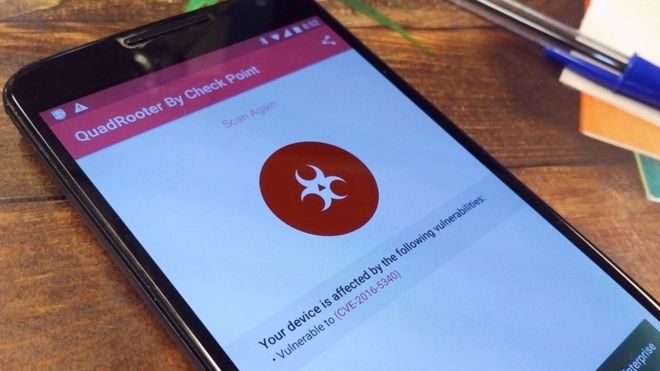
Checkpoint has created a free app called QuadRooter Scanner that can be used to check if a phone is vulnerable to any of the bugs, by looking to see if the patches for them have been downloaded and installed.
In addition, Mr Shaulov said Android owners should only download apps from the official Google Play store to avoid falling victim to malicious programs.
"People should call whoever sold them their phone, their operator or the manufacturer, and beg them for the patches," said Mr Shaulov.
Qualcomm has yet to respond to a request for comment.

Saturday, 13 February 2016

HOW TO lock down your Facebook privacy settings


Chances are, you've got a Facebook account - but do you know which parts of it are private and which parts are open for all to see? Understanding the various visibility rules for your posts can be confusing but we're here to explain everything in simple terms.

You can even cover your tracks retroactively, should you need to, so that video of you making a fool of yourself at the office Christmas party doesn't have to be viewable by everyone if you don't want it to. (You're not secretly proud of your antics, are you?)

Choose your audience


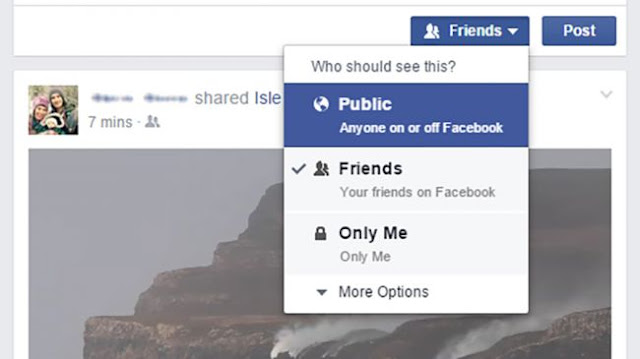
Whenever you post something to Facebook, whether through the website or through an app running on a mobile device, you'll see an audience selector drop-down list somewhere on the screen: this controls who can see your post when you put it on the social network.

The options range from everyone with a web browser ("Public") to no one but you ("Only Me"). Facebook lets you set up customised lists of contacts, so you could keep some posts specifically for your family, your work colleagues or your best friends, for example.


Choose Custom from the audience selector drop-down and you can even name specific people who can or can't see the post. If you've tagged someone else in it, then you can block his or her friends from seeing the update from the same dialogue box.

Most people just don't care enough to set different visibility levels for different posts, but it is actually a rather useful way of taking control over who can see what on your Facebook page - although there are some caveats, as we'll come to further down.

Limit other people's posts


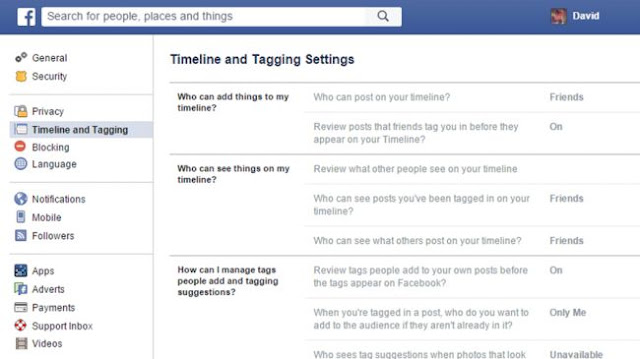
If you don't want other people tagging you in posts, go to the Facebook settings page on the web, then choose Timeline and Tagging. There's an option to let you review and approve tags before they're applied to posts (though the post itself still goes up).

For those times when you really have a problem with what someone else is doing on Facebook, there are report and block options available, via the drop-down menus for individual posts and the Blocking section of the master Facebook Settings screen).


The Timeline and Tagging screen controls who can post on your timeline and gives you the option of reviewing these posts in advance too. If you then click on Privacy on the left it's possible to configure the options for who's able to contact you over Facebook.

You can limit people who can send you friend requests to friends of friends, for example, and stop people from adding you based on your email address and phone number. Note there's a master audience selector option located on this settings page too if you need it.

Remember it's not foolproof


There are ways around these settings: if you're in an embarrassing photo that someone else has uploaded, some of your mutual friends might recognise you even if you're not tagged. There's not much you can do except ask whoever uploaded it to take it down.

What's more, if you share a photo to just five people, there's nothing to stop one of those people copying and uploading it for the whole world to see, so if you've got a secret to keep then just don't put it anywhere near a social network in the first place.


That said, it is worth reviewing the privacy and post visibility settings linked to your Facebook account, even if it's just to make sure you're not inadvertently putting any sensitive information out there on your profile for the wider world to see.

Ultimately it's just a question of thinking twice before you share anything (such as the location of a photo taken where you work or live) and making use of the plethora of options Facebook has available to tailor your social media privacy rules accordingly.

Check activity and post visibility


Open up your Facebook profile page and there are two useful features here. First, click on View Activity Log to see your recent activities on the social media site (from likes to status updates) and to deal with any posts from friends you might have been tagged in.

Here you can block or remove tags, undo pretty much everything you've ever done on Facebook, and remind yourself who can see particular bits of information that you post (via the audience visibility settings shown via icons down the right hand side).


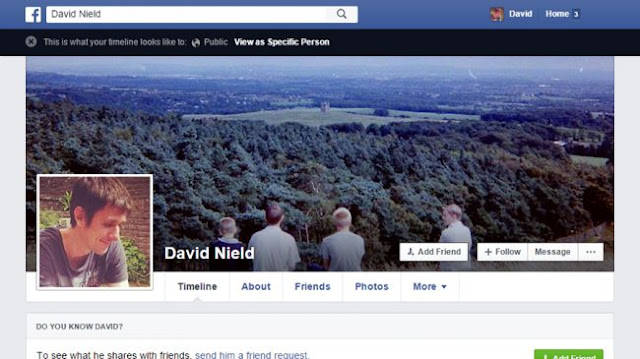
Head back to your profile page and click the menu button (three horizontal dots) then choose View As - you can see what a random passing member of the public is able to view on your timeline, or view your profile page as it appears to a specific contact.

The different parts of your profile have more or less the same audience selector options as your posts: choose About from your profile then follow any of the edit links to make changes (to hide your hometown from everyone except your family, for example).